
How to Use PiPedal
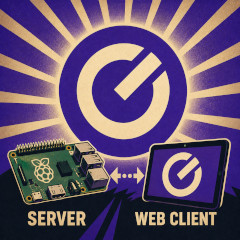
There are two parts to Pipedal: there is the Pipedal Server, which runs the realtime audio engine and plugins; and there is the PiPedal user interface, provided by a web application, which is what you use to control and configure the PiPedal server.
By original design, the server and the user interface should run on separate computers. GPU activity and screen rendering interfere with realtime audio processing; so to get the best possible latency and stability, you should not run the web application on the PiPedal server, and avoid using the PiPedal server machine for anything that will render graphics to the screen on the server machine. PiPedal was originally created to run on a Raspberry Pi 4, and subsequently ported to AMD64/x86-64 sytems, in the expectation that tiny N150-class micro-Pcs would also make a sensible platform on which to run Pipedal. Doing so, of course, means that you can also use PiPedal on a powerful desktop or laptop computer as well. But in all cases, the best possible performance and lowest possible latency is achieved if you run the web application on a separate machine from the PiPedal server.
If you are running the PiPedal server on a Raspberry Pi 4. In that case, you must run the web application interface on a separate computer.
If you are using a Pi 5, or an N150-class micro-PC, you might be able to run the web application on the server, with some signifant affect on what latencies and maximum CPU use you can safely use.
If you are running the PiPedal server on a powerful AMD64/x86-64 desktop or laptop computer, you can run both browser and server on the same machine; but even then, you will get better latency and stability if you run the web application on a separate computer.
On a Raspberry Pi, you will need an external USB adapter, or an audio hat of some kind. PiPedal will not work with the Raspberry Pi’s built-in audio, which is not of sufficient quality or latency to be useful. On AMD64/x68-64 systems, you may be able to use the builtin-in audio systems, but you would be better off using an external USB audio adapter anyway. There are difficult problems with line-level conversions, and input and output impedances, all of which go away if you use an external USB audio adapter.
There are a lot of different USB audio adapters out there, not all of which provide optimum results with PiPedal. The quality of PiPedal’s amp simulations relies to a significant extent on the dynamic range (ratio of loudest to quietest signal) of the input signal you are using. This is not the same as the number of bits that an audio adapter provides. Low-end audio adapters that claim to support 24-bit audio will often have a signal-to-noise ratio that is less than 16-bits worth of dynamic range (sometimes dramatically less). If you are just trying PiPedal out to get a sense of what it is capable of, you can get good results with a low-end USB audio adapter—probably better than what you would get with most previous-generation amp simulation technologies. But to get truly extraordinary results, it is worth investing in a good mid-range USB audio adapter that has a signal-to-noise ratio of at least 110dB. Models that I can particularly personally recommend: MOTU M2, or Focusrite Scarlett 2i2 (4th gen) (not the Solo, or 3rd gen models which have significantly less dynamic range). Both of those USB audio adapters have a signal-to-noise ratio that exceeds 110dB, which is more than enough to get the best possible results out of PiPedal’s amp simulations. Guitar amplifiers dramatically compress the available dynamic range of the signal, and raise the noise floor. So every bit of dynamic range/signal to noise ratio that your audio adapter provides matters.
The Factory Presets that PiPedal provides are based on the premise that the audio output from PiPedal is going to headphones, a PA system, a front-of-house mixer, or some kind of speaker that has more-or-less linear response. It is perfectly reasonable to use PiPedal in front of an actual guitar amplifier as well; but in that case, you will need to modify presets to take into account the fact that the output from PiPedal is going to a guitar amp, which has a very different frequency response and linearity than a PA system or a front-of-house mixer.
It’s probably worth mentioning at this point that the Pipedal server does not run as a normal application; instead it runs as a systemd service. This allows the Pipedal server to run both the web server and the realtime audio engine at realtime priority, under a service account, and ensures that the PiPedal server automatically starts after a reboot, even if you have not logged in interactively.
This may cause slightly odd interactions with audio services running in an interactive desktop session. First off, PiPedal gets the first claim on the audio device it is configured to use at boot time, because it runs before the desktop has a chance to use it, and because it opens the audio device for exclusive use by PiPedal. It also means that if you are changing PiPedal’s audio device, you may need to get your desktop to release the device, by choosing another device for the desktop to use before PiPedal can select the device in question. You can tell whether something else has opened an audio device in the PiPedal UI. If the device is in use, it will appear in the list available audio devices, but it will be grayed out and you won’t be able to select it. If something else is using the device, it is invariably the desktop that is using it, and you will need to get the desktop to release the device before PiPedal can use it.
« Machine Learning in PiPedal (A History) | Up | How to Build Presets With PiPedal »